

A group meeting is a one-to-many meeting type where multiple clients can join a single meeting with the host. Group meetings are useful when the host wants to host webinars or training sessions that typically involve many clients.
In a group meeting, the host can set the maximum number of clients that can book a particular meeting. If the host has set the number as 50, then up to 50 clients can book the same time slot. The host also has the option to show the number of remaining spots on the booking page.
Let's say the host has set the maximum group size per slot as 10, and 9 clients have booked the meeting at 10:00 AM. The 10th client trying to book the same slot will see "1 remaining spot" under 10:00 AM. After the 10th client makes a booking, the 10:00 AM slot will no longer be available, as the maximum number of bookings has been made.
Creating a group meeting
Click on the Scheduling links tab from the left sidebar.
Click on the Add new scheduling link button.
Select Group meeting and click on the Continue button.
You will be redirected to the What tab, where you can enter the meeting details.
Choose the Maximum group size per slot. You can pick 2, 5, 10 or 25, or click Custom and enter your own number.
Click on the checkbox Show remaining spots in slot listing if you want clients to see how many spots are left next to each time slot.
Click on Save.
Click on the arrow at the top right corner to view the booking page.
Letting one client book multiple spots
By default each client takes one spot. If someone needs to bring others along, turn on Allow one client to book multiple spots in the same meeting on the What tab, right below the group size.
This adds the question "How many spots would you like to book?" to your booking form, and clients choose their number of spots while booking. The choices in that question shrink to match the spots still left in the slot, so a client can never book more than the slot can hold. The question stays on the form for as long as the setting is on; turn the setting off to remove it.
Charging a different price per spot
Group meetings can charge different prices for different types of spots in the same slot, such as adult and child on a walking tour, or member and non-member for a workshop. You can also mark a free category so it doesn't use up a spot. Set this up under Accept payment on the scheduling link; see Category-based pricing for the details.
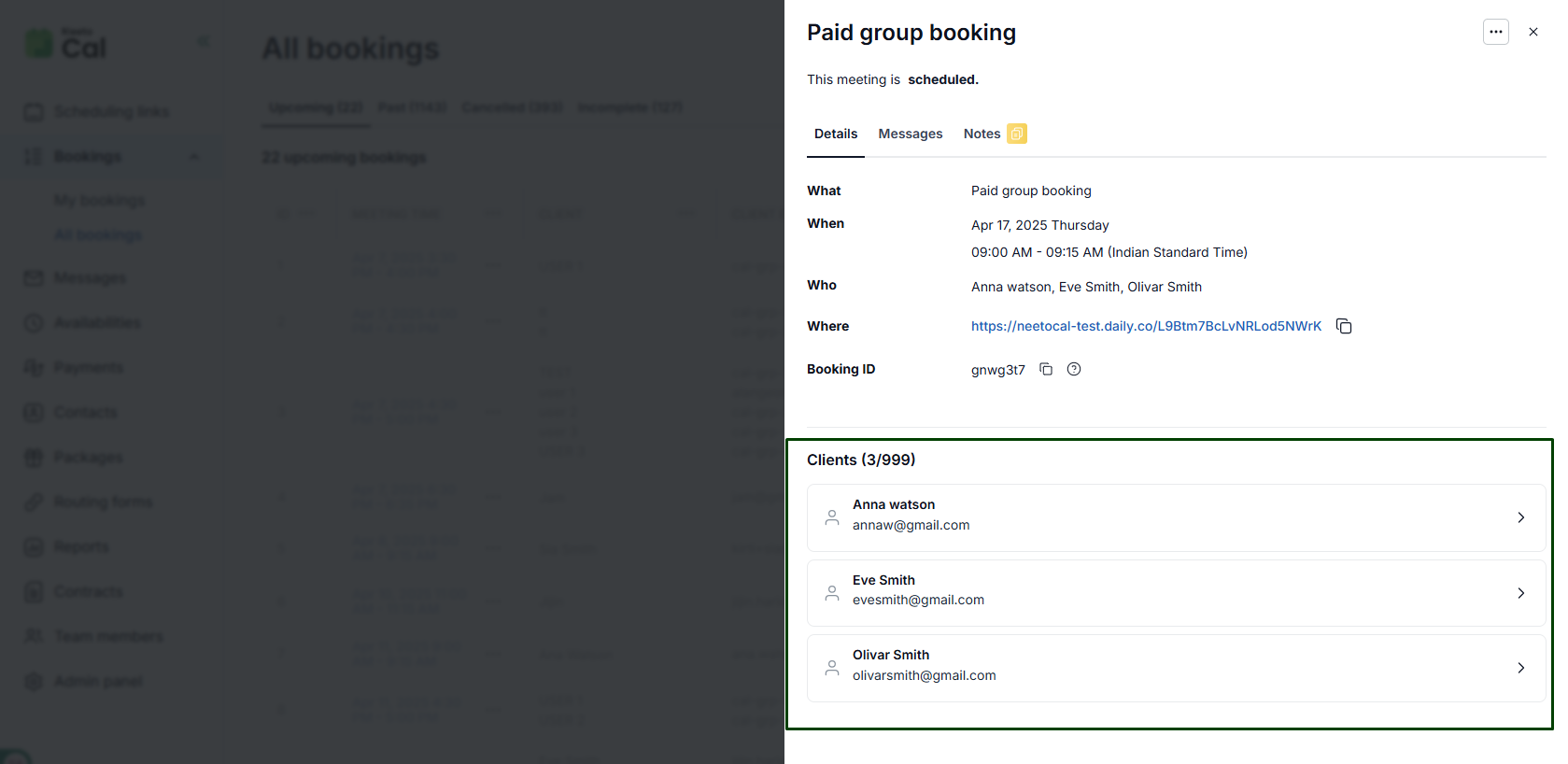
Seeing who has booked a slot
Go to the Bookings page.
Click on the meeting time for the group booking.
The side pane shows Clients with the spots taken out of the total group size, followed by everyone who booked.
If a client booked more than one spot, their name carries a tag with the number of spots. If you charge a different price per category, each booking also shows its payment breakdown, such as Adult × 2, Child × 1.
Client emails in calendar invitations
Clients are never added as guests on the calendar event for a group meeting, so nobody sees anyone else's email address. Each client's calendar invitation lists only the host and themselves. To see the full list of clients and their email addresses, open the booking from the Bookings page.
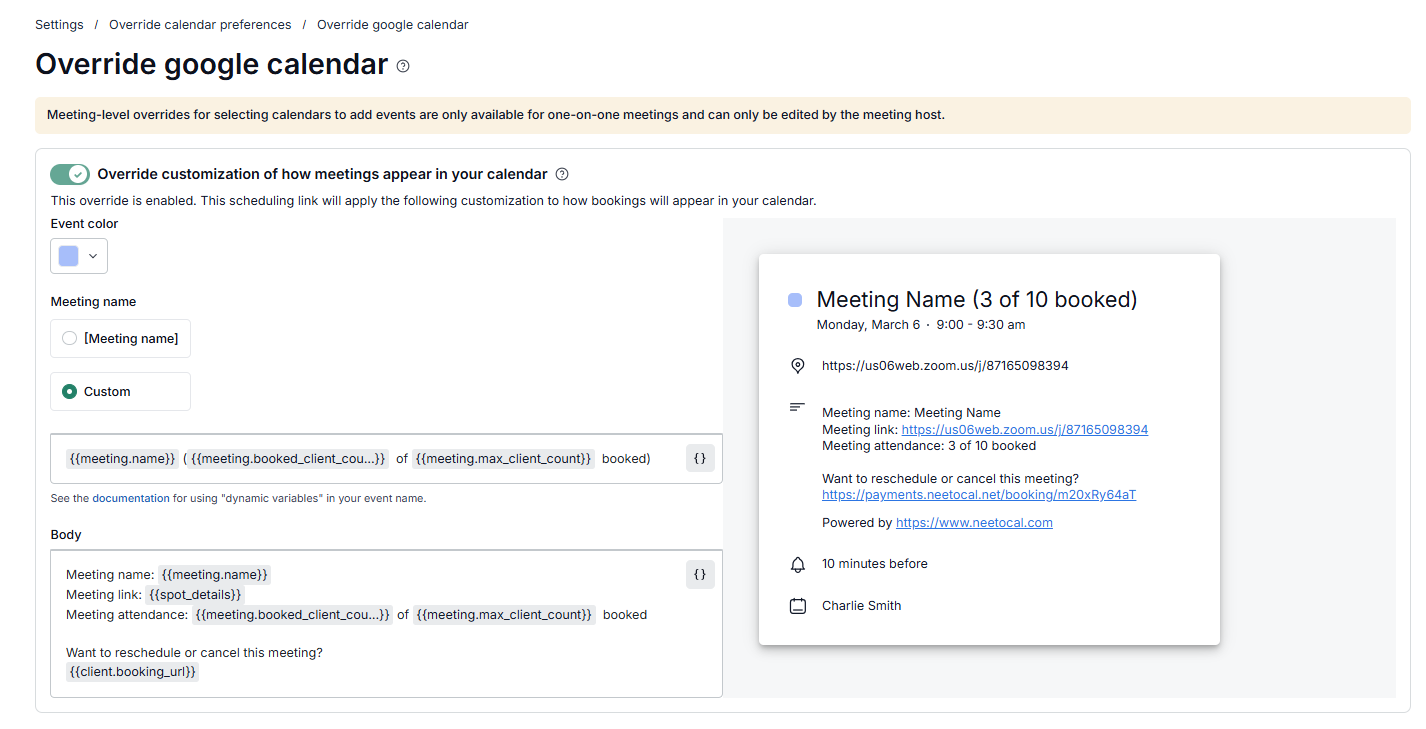
How group meetings appear in your calendar
A group meeting always creates a custom calendar entry for the host, showing the meeting name along with the spots booked, such as "Yoga class (7 of 10 booked)". This makes the calendar the quickest place to check attendance.
The setting behind this, Override customization of how meetings appear in your calendar, is switched on for group meetings and can't be switched off.
Messages for group meetings
The host can message everyone who booked a slot, or one client at a time.
To message everyone:
Go to the Bookings page.
Click on the meeting time for the group booking.
In the side pane, click on the Messages tab.
Enter the message.
Click on Send.
To message one client:
On the same side pane, click on the client name.
Click on the Messages tab.
Enter the message.
Click on Send.
Clients see the message in the Messages tab of their confirmation page and also receive it by email. When a client writes back, the reply appears in the Messages tab of that client's booking.
Cancelling the meeting for everyone
Go to the Bookings page.
Click on the meeting time for the group booking.
Click on Cancel meeting.
Select Refund all participants if the meeting was paid and you want to return what everyone paid.
Click on Yes, cancel for everyone.
Everyone who booked receives a cancellation email. To cancel for a single client instead, open that client's booking from the side pane and cancel from there.
What you can't change in a group meeting
The duration can't be changed while there are upcoming bookings on the link. Say the host set 30 minutes, clients booked, and the host then switches to 60 minutes; the meetings people already booked would no longer line up. Once those bookings are in the past, the duration can be changed again.
A group link can offer only one duration.
Bookings on a group link can't require approval.
A group link can have only one host.
Add-on services aren't supported on group meetings.