

Google Tag Manager (GTM) lets you manage several tags, such as Google Analytics, Meta Pixel and Google Ads conversions, from one place without editing code each time. NeetoCal loads your container on your intro pages and scheduling links, and pushes each step of a booking to the data layer so you can trigger tags on it.
If you only need basic site analytics, see Connect Google Analytics.
Finding your Container ID
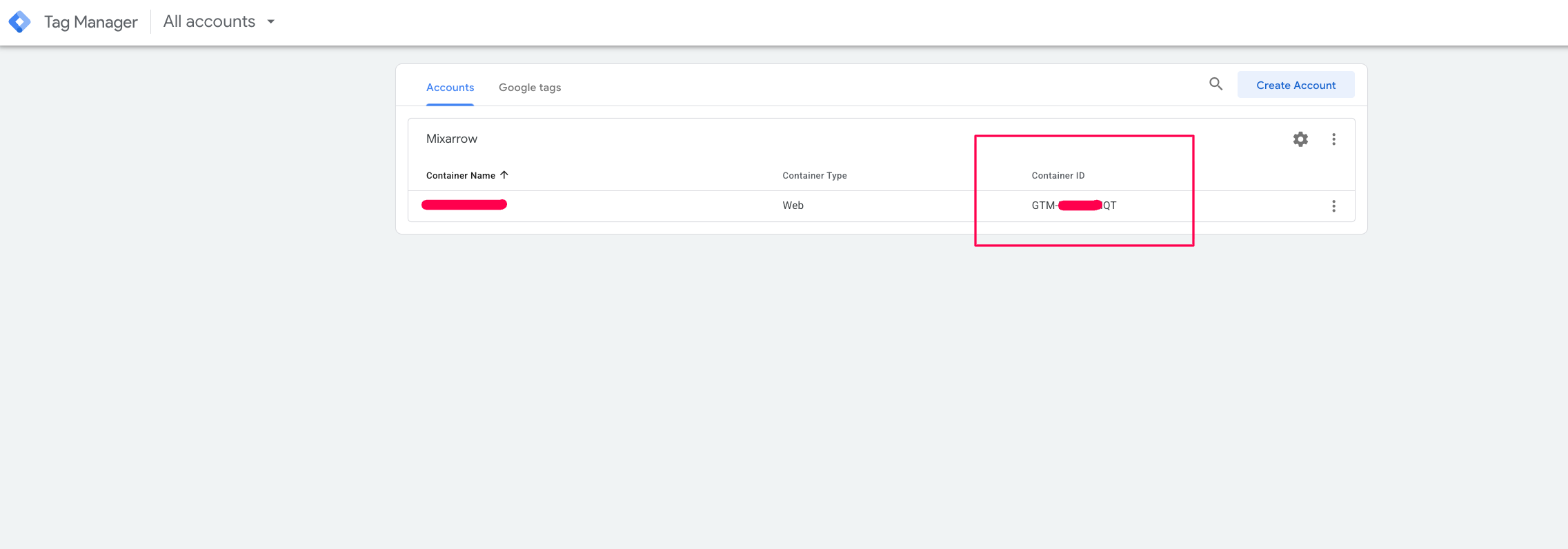
Your Container ID starts with GTM-, for example GTM-XXXXXXX. A Google Analytics Measurement ID, which starts with G-, will not work here.
Go to tagmanager.google.com and open the container you want to use.
Find the Container ID in the top right of the workspace header.
-
Copy the ID.
Connecting GTM to a scheduling link
Go to Scheduling links from the left sidebar.
Open the scheduling link you want to track.
In the settings sidebar, open Integrations.
Click on Google Tag Manager.
Paste your ID into the GTM Container ID field and click Connect.
Connecting GTM to an intro page
Go to Intro pages from the left sidebar.
Open the intro page you want to track.
Click on Google Tag Manager in the settings sidebar.
Paste your ID into the GTM Container ID field and click Connect.
Triggering on booking events
NeetoCal pushes each step of a booking to the data layer:
neetocal.view_item_listwhen your intro page is openedneetocal.view_itemwhen a scheduling link is openedneetocal.add_to_cartwhen a time slot is pickedneetocal.begin_checkoutwhen the booking details form opensneetocal.add_payment_infowhen a payment is submittedneetocal.purchasewhen the booking is placed
Each one carries the same details as the matching Google Analytics event. All of them except the intro page list name the scheduling link, and a placed booking also carries the amount and currency. See Send booking events to Google Analytics for what each step means.
Build your triggers on those.
Booking events are switched on under the Google Analytics integration, which needs a Measurement ID. Connect Google Analytics and turn on Send booking events to Google Analytics even if GTM is all you use. See Send booking events to Google Analytics.
If you build a tag in GTM that reports a booking to the same Google Analytics property NeetoCal already sends to, every booking is counted twice. Send yours to a different property, or leave the reporting to NeetoCal.
Setting up tags inside GTM
All tag setup happens inside Google Tag Manager itself; Google's Tag Manager Help Center walks through every step. At a high level you will:
Add the tags you want to fire, for example a GA4 event tag, Meta Pixel, or a Google Ads conversion tag.
Set up triggers, either the built-in ones such as Page View, Click and Scroll Depth, or one of the booking events above.
Use Preview mode to check each tag fires on the NeetoCal page.
Click Submit to publish the container.
Note
NeetoCal does not load your container inside an embedded scheduling link, but the booking events are handed to the page holding the embed, so a container on your own website picks them up under the same
neetocal.names. See Capturing booking events from embedded scheduling links.