

Before exploring the All hosts tab, review Self tab to understand what actions you can perform on behalf of your team members.
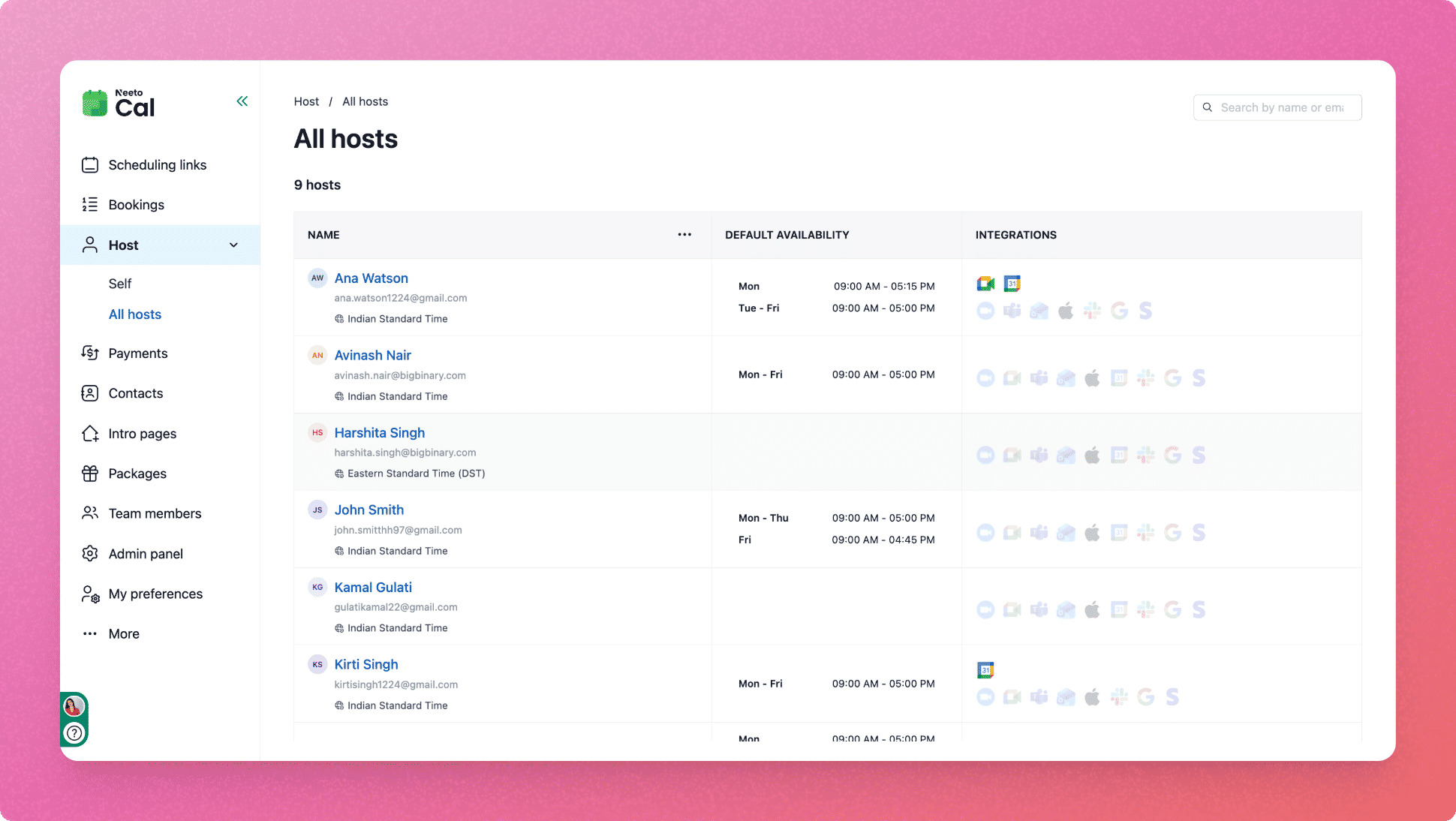
All Hosts tab gives you a directory-style view of every host in the workspace. This is useful for
Audit and manage integrations and settings across your entire team without asking each host to do it themselves.
Onboard new team members by setting up their calendar, video, and availability settings on their behalf.
Troubleshoot a host's settings when they're having issues with bookings or integrations.
What you see in the list
The All Hosts list shows each team member with
Name and timezone
Default availability.
-
Integration connection status (which tools are connected).
Viewing and managing an individual host
Click any host to open its detail view.
From here, you can manage all the same categories as the Self tab, but for that specific host.
Connecting an integration for a team member
Let's consider an example where you want to connect Google Calendar for your team member.
Go to Host in the left sidebar.
Click on All Hosts.
Find the team member in the list and click their name.
Under Calendar integrations, click Google Calendar.
Click Connect and complete the sign in flow, the calendar will be linked to that host's account.
Once connected, you can calendar preferences from the same page.
The same steps apply for any other integration (Zoom, Outlook, Slack, etc.) Go to the relevant category under the host's detail page and connect from there.