Dynamic variables are values that change based on the meeting, client, or other details. For example, to include both the host's and client's names in a calendar event, set the meeting name to {{host.name}} and {{client.name}}.
Finding available variables
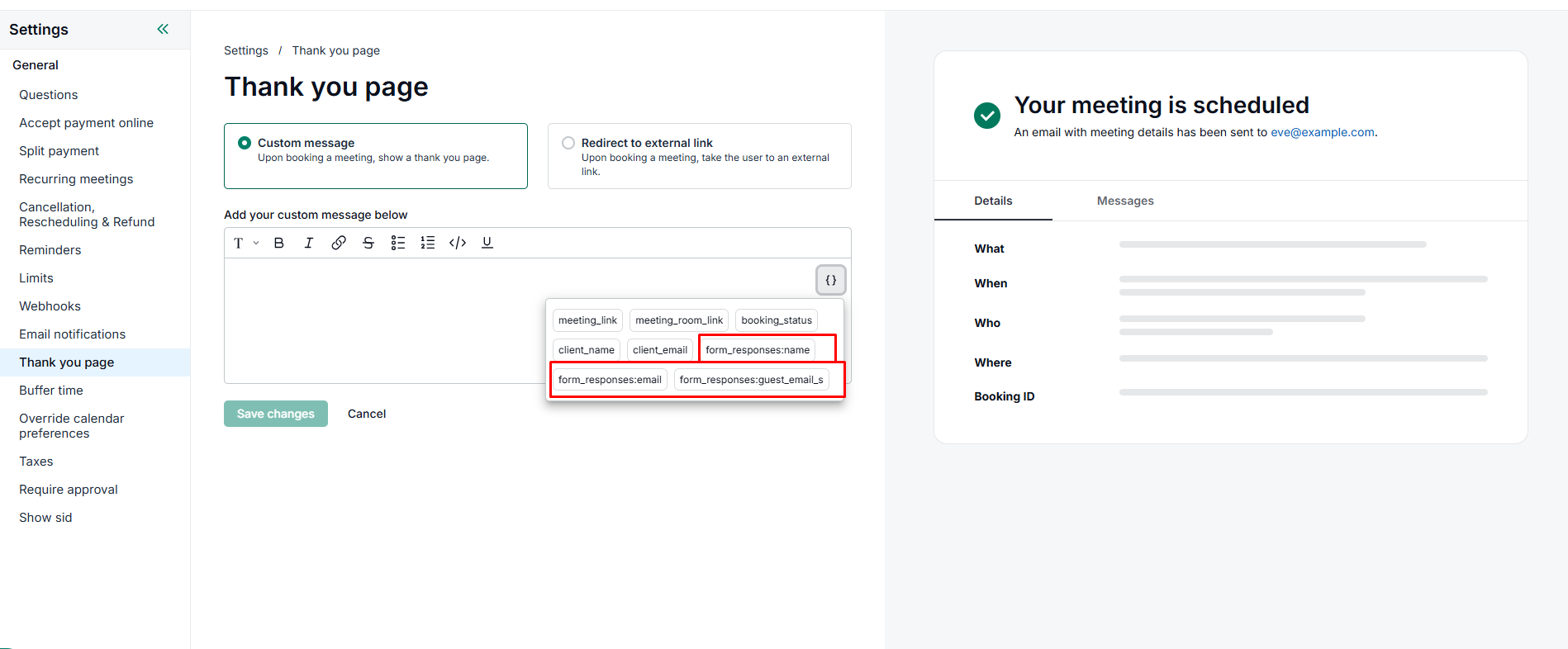
You don't need to remember variable names or refer to a separate list. Any field that supports dynamic variables has a { } icon. You'll find it in the toolbar of the message editor and on the right side of the subject field.
Click the icon to see all available variables, grouped by category, and select one to insert it.
The available variables depend on the template you're editing. For example, cancellation emails include a cancellation reason, and booking form questions appear under Form responses.
Using form responses in dynamic variables
You can use form responses as dynamic variables in email subjects, email messages, and the thank-you page.